Import design briefs, storyboards or content from any document and convert into storyboards
Matt
Updated:
December 3, 2025
Overview
By the end of this article you will be able to import the content of any document and convert it into a storyboard. This includes the opportunity to run any fixes (if needed) during the conversion from document to storyboard. Importing from documents helps you convert existing design briefs, or outdated document formats into dynamic, visual storyboards. Every document you upload is different, so during import you're given plenty of choice for how to convert the content into a storyboard.
Import becomes powerful when you have existing design briefs, document-based storyboards, or course content in documents that needs be designed, redesigned or reused across new and different learning experiences. Once you've imported content from your documents you can use it in the storyboard and publish it into various platforms and formats - all from within Coursensu.
Contains
Start the document import process - where to find the import feature
Cleaning an imported document on Coursensu - using the import tools to make changes during import.
Import content into your design - shows how documents quickly become design content.
Terminology
Document - any compatible document that can be converted into a storyboard (includes doc, docx, pdf, txt, rtf and html).
Ready? Let's import content and give your designs a content boost!
Start the import process - from an existing design
Tip: Skip to the next section if you want to create a new design to import into.
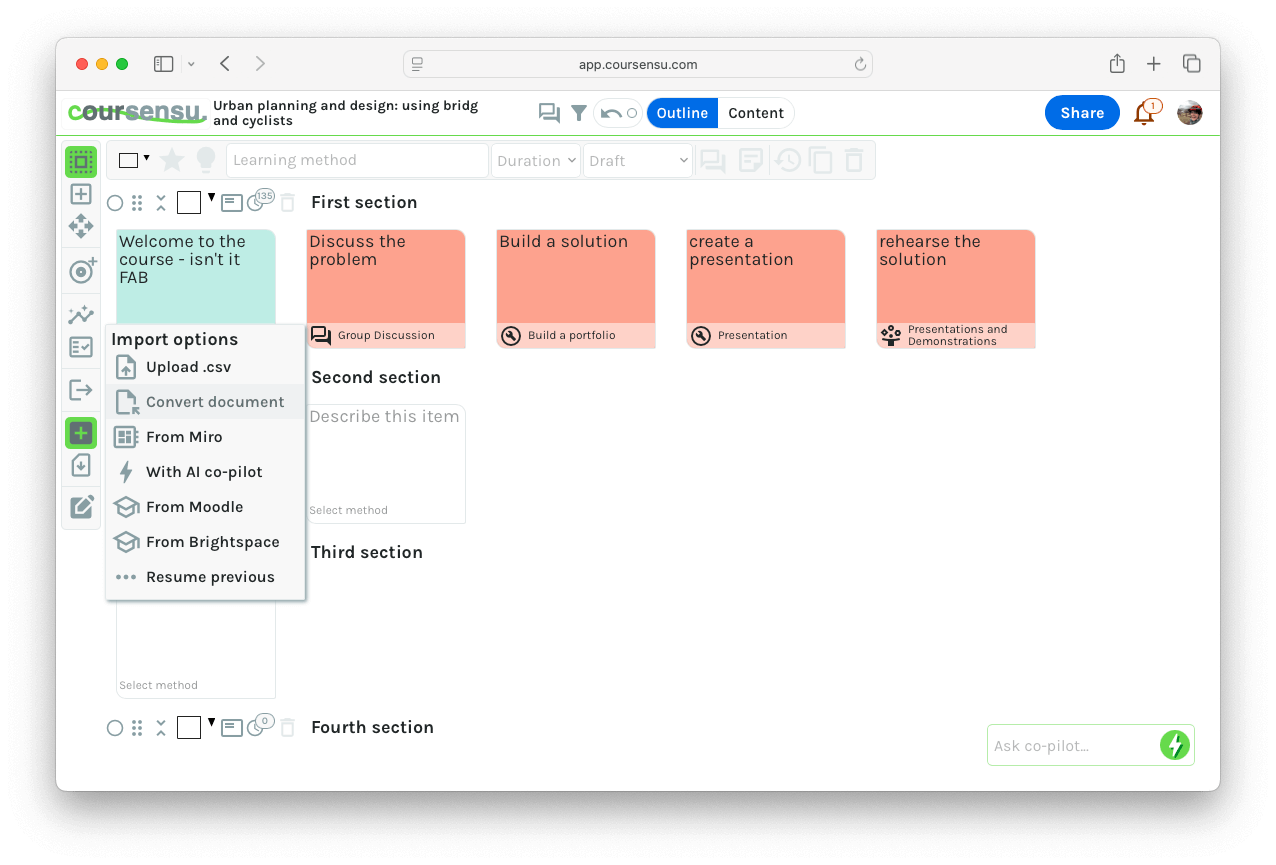
Step: Navigate to a design you want to import content into and select the Import icon from the toolbar.
Select the Import icon, and then 'Convert document'
Note: You can import into a new design, or one with existing content (import will not overwrite existing content).
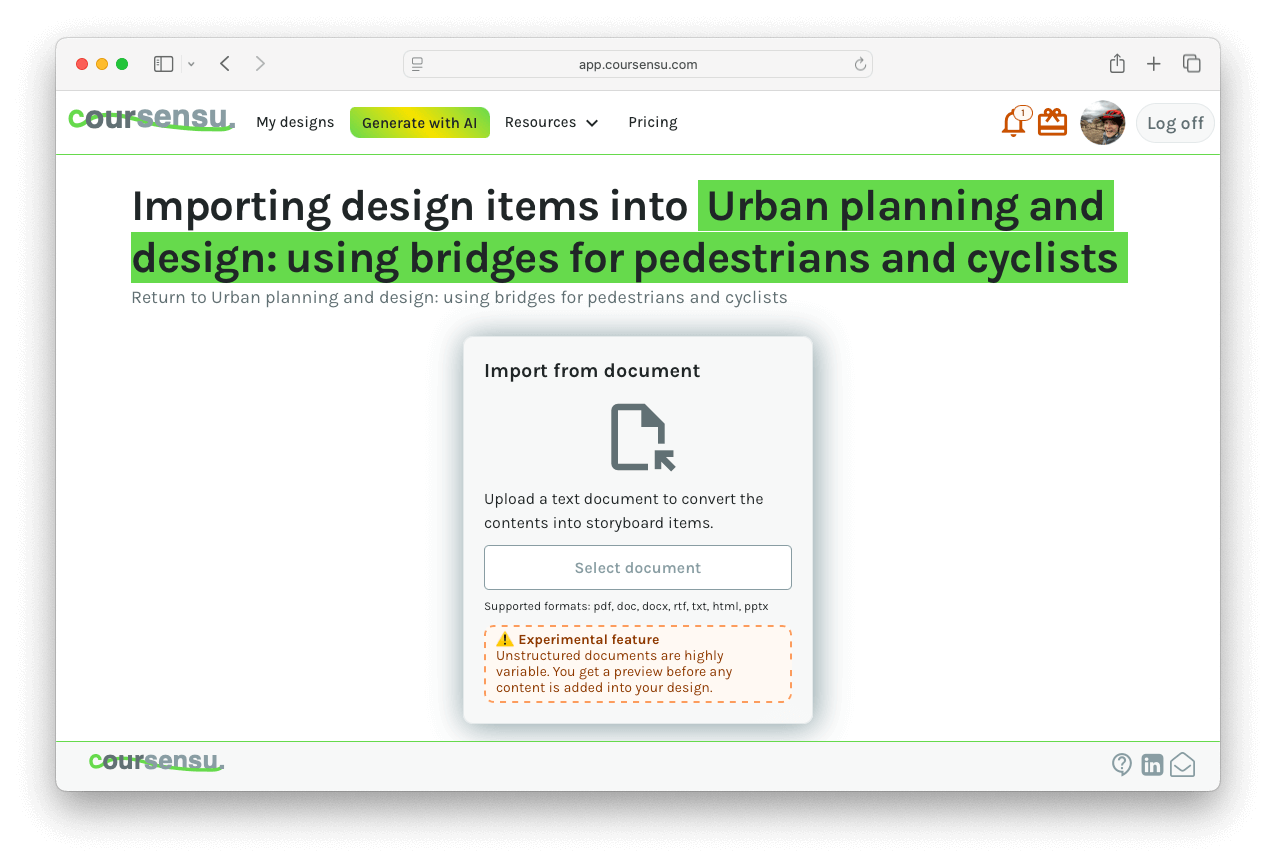
Step: Select your source document to import content from (doc, docx, pdf, txt, rtf and html supported)
Select your source document to import from
Step: When your document has been uploaded the conversion will begin - you get a preview of the import before it is added to your design. At this point, you just need to wait, it can take 1-2 minutes.
Converting a document into a storyboard
Step: Import will match the source document with the storyboard features and show an import preview:
Preview of the converted document
Tip: Scroll within the import preview to see all items - it has its own scrollbars.
Step: Import all (or selected items into Coursensu
Select the 'Import all' (or selected) items button to start the import process
Step: Wait for the importer to add the items into your storyboard
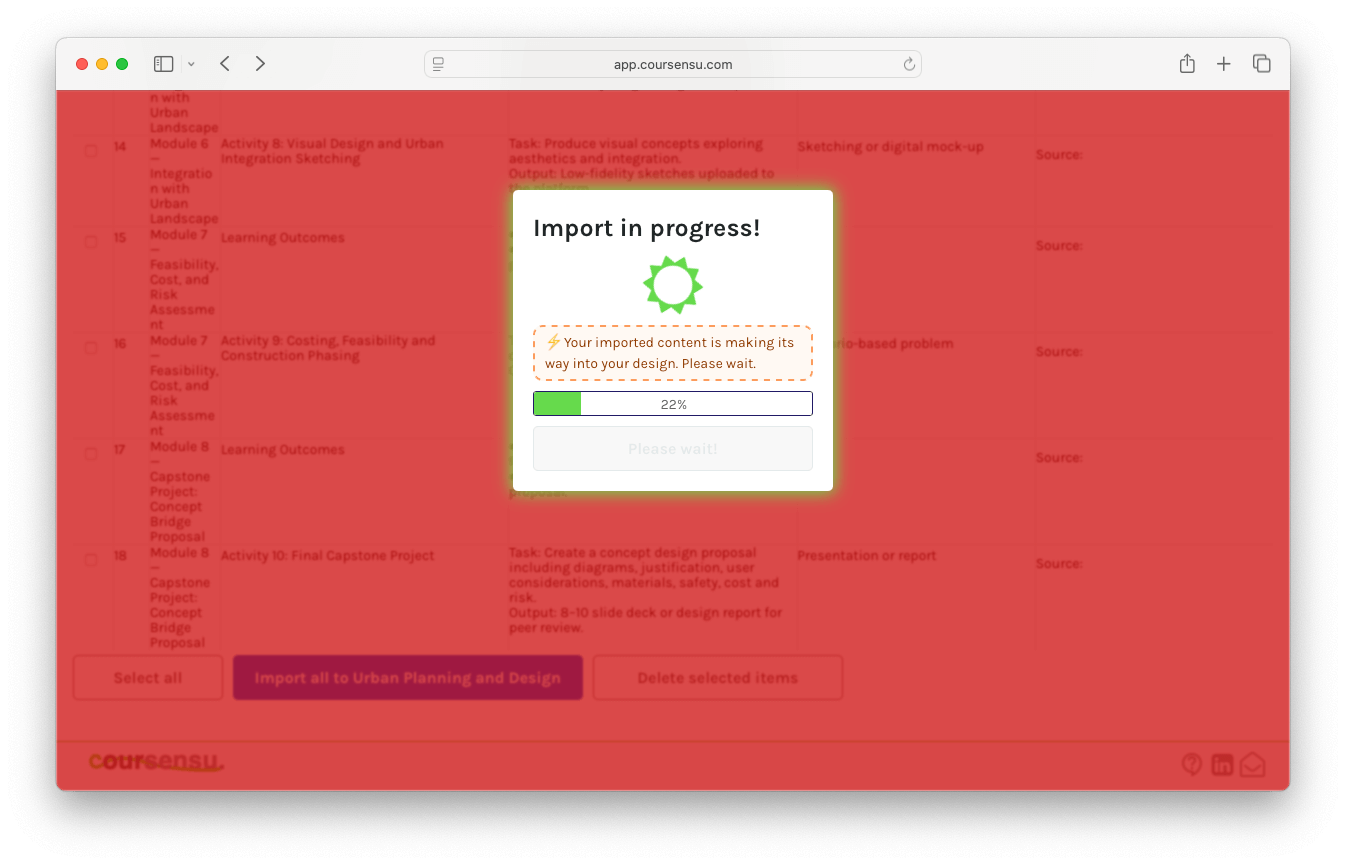
Importing document content into your storyboard
Step: View your imported items in your existing storyboard
New items added to a storyboard
Optional: Cleaning an import on Coursensu.
This section we will use some import tools to help confirm and clean our design import before it is fully imported. All steps here are optional.
Step: Review the preview table and check you are happy with the data mapping to the fields. If not - see below.
Cleaning and making bulk changes during the import process
Optional step: Perform bulk operations on any selected line in the preview table to edit or fix items you are importing.
Bulk operations that can be performed
Optional step: The drop down menu contains fixes or changes that you can make in bulk, this can help speed up the process or fix issues.
Import your design
This final step will bring your import preview content into your design - the goal!
Step: Select all lines in the Import preview that you wish to import.
Selecting items to import into your design
Step: Select the 'Import all items to ' (in our example 'Coursensu import demo' - yours will differ!).
Step: Wait for the import to complete - do not navigate away. It is happening in the background, and pretty fail-safe but we prevent your movement just for a moment to be sure).
Import in progress
Step: Select 'FINISHED - Go to Designer' when the button appears
Import now finished (it can take 30-60 seconds to process your import, be patient)
Step: Review your import in the designer view.
Reviewing our imported items
Outcome: You have completed this task 🚀 Nice one. You have imported design content and can now use Coursensu to make your future design decisions for this work.
Note: The import columns will attempt to import into their respective areas (such as Duration, Method, Purpose, Resources, Type, etc.) but these are worth checking as it's not 100% guaranteed due to the nature of csv and that you can 'type anything' in other software. It can be buggy for many reasons, something we will try to improve but can't be immune to!
Top 3 next steps
Check your design and make sure Import bought all your data over.
Review the team for this design and add others to collaborate.
Start adding more design details, such as the richer pedagogic information.